Connect Salesforce.
Set up the Salesforce integration so that Solacia records each demo buyer in Salesforce, with a summary of the demo and a follow-up task.
- Who
- A Salesforce administrator
- Edition
- Enterprise, Unlimited or Developer
- Time
- About 10 minutes
- Package
- Solacia 1.0
Before you start
- Salesforce administrator rights.
- Enterprise, Unlimited or Developer Edition. Professional Edition works only with API access.
- A user in the Solacia console.
In Setup, open each screen from the Quick Find box at the top left.
Install the package
- Open the install link.
- Select Install for Admins Only.
- Select I acknowledge…
- Click Install.
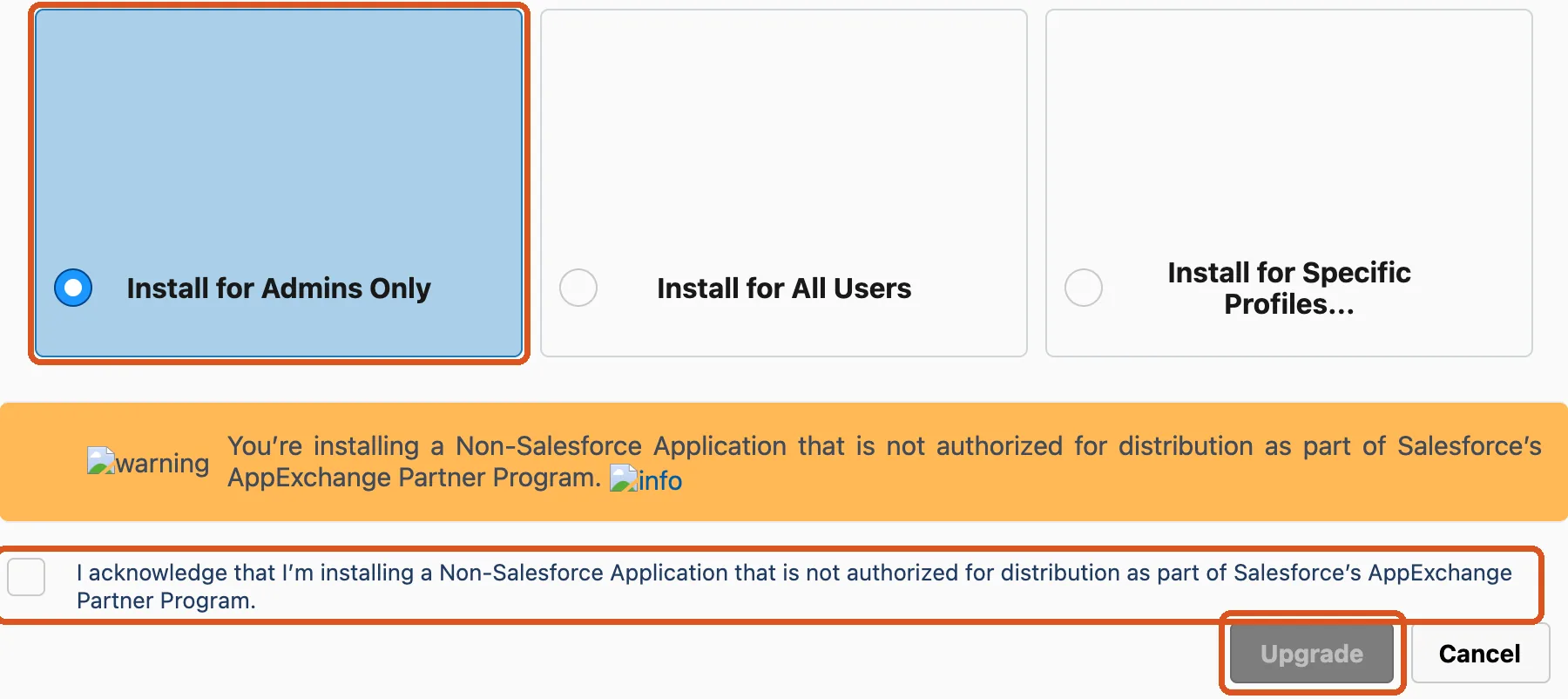
If the package is already installed, the button says Upgrade.
Give access
- Quick Find: Installed Packages. Click Solacia.
- Click the Solacia row whose type is Permission Set.
- Click Manage Assignments, then Add Assignment.
- Select the user who will connect. Click Next, then Assign.
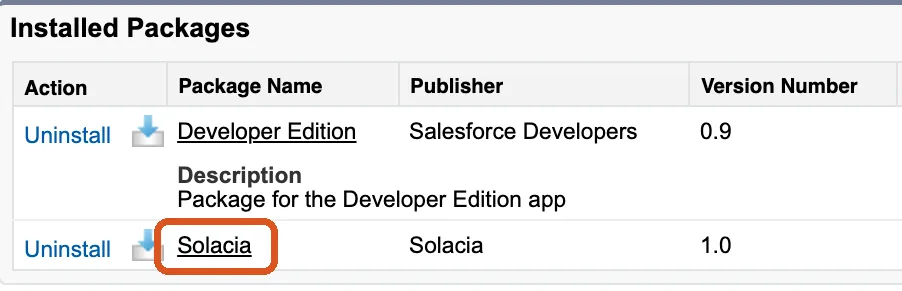
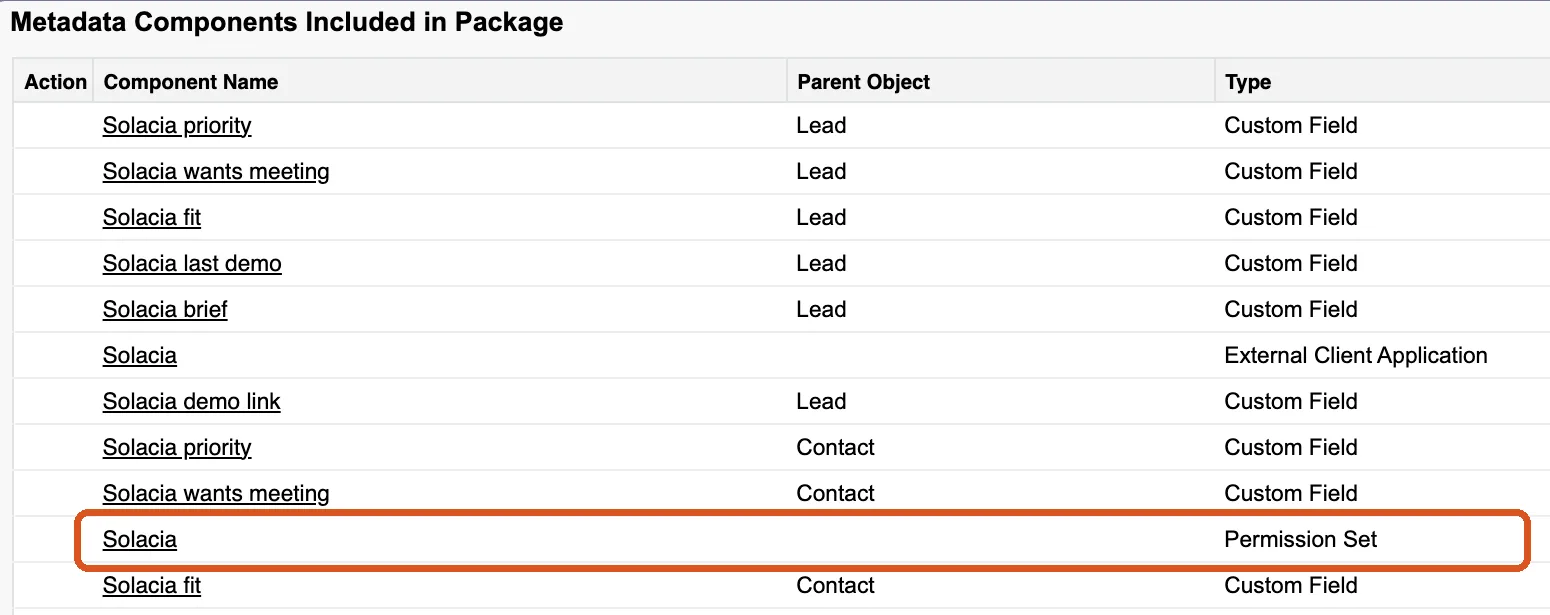

Assign it even to an administrator. Without it, the Solacia fields stay empty.
Set the app's policies
- Quick Find: External Client App Manager. Click Solacia.
- Open the Policies tab, click Edit and expand OAuth Policies.
- Refresh Token Policy: Expire refresh token if not used for specific time, 720, Month(s).
- IP Relaxation: Relax IP restrictions. Click Save.
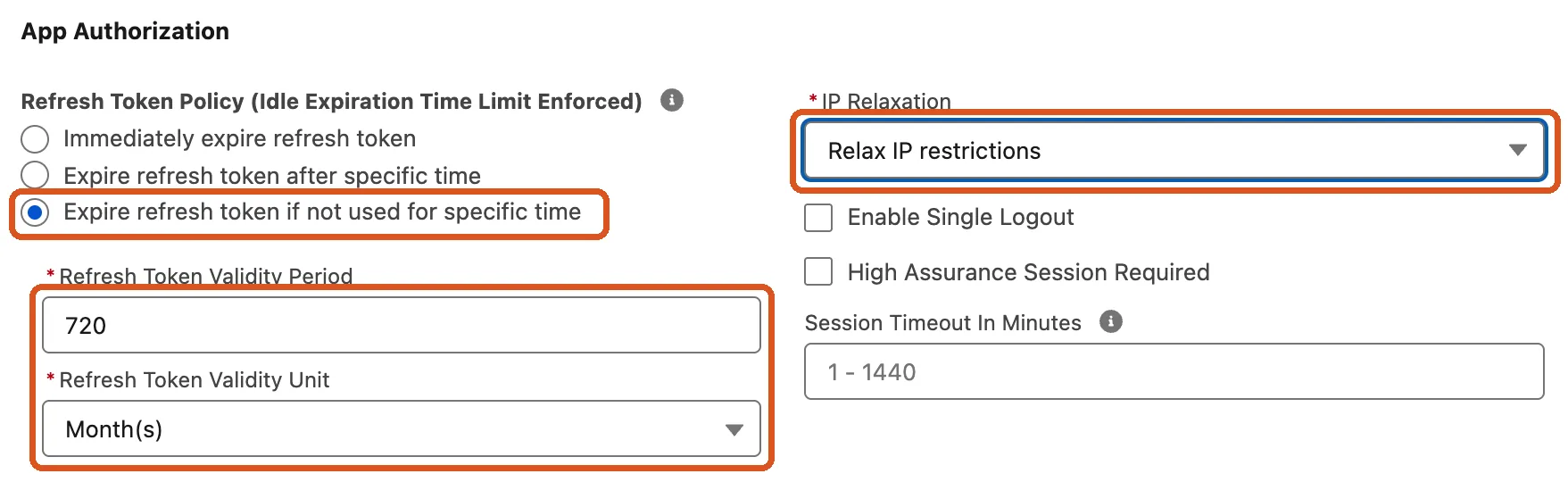
Do not choose Relax IP restrictions for activated devices.
Map the fields
- Quick Find: Object Manager. Click Lead, then Fields & Relationships.
- Click Map Lead Fields, then the Contact tab.
- For each Solacia field, change None to the field with the same name. Click Save.
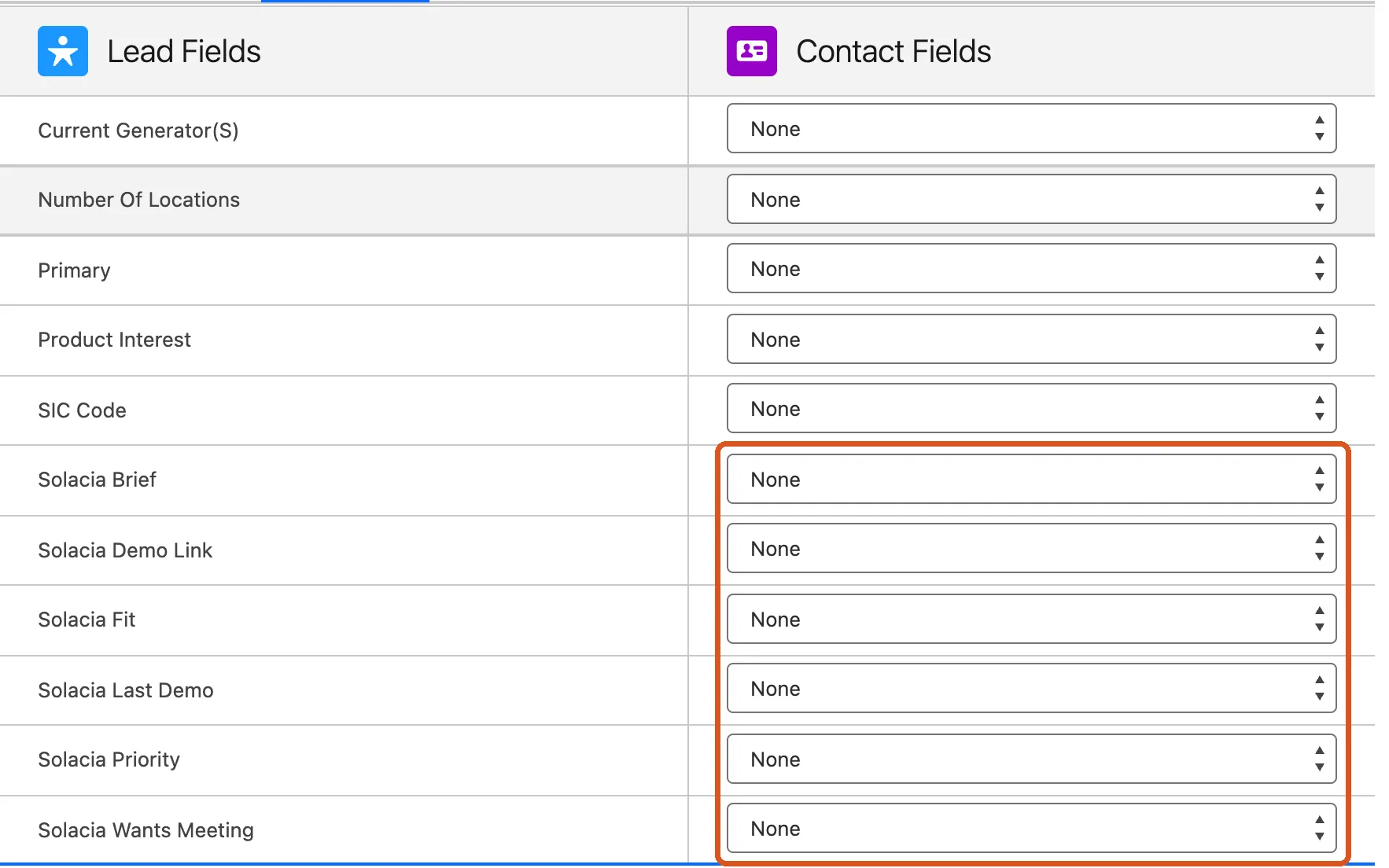
This keeps the Solacia fields when a rep converts the lead.
Connect
- In Solacia, open Integrations. On the Salesforce row, click Connect.
- Sign in as the user from step 2 and click Allow.


When the connection works, the row says Connected to your org.
Check and test
- Quick Find: Lead Assignment Rules. Make sure one rule is Active. Otherwise new leads are owned by the user who connected.
- Send a demo to an email address outside your company and ask to talk to the team. Within a minute, a lead with Lead Source Solacia and two tasks appears.

A required field or a validation rule on Lead that asks for more than email, name, company and title rejects every lead.
What Solacia writes
The person
Their contact; if there is none, their open lead; if there is none, a new lead with Lead Source Solacia.
The demo
A completed task with the summary a rep reads before the call.
The follow-up
One open task for the owner, with the email drafted.
The company
Country and No. of Employees on the lead, when the buyer said them in the demo. An existing lead keeps the values it has.
Nothing else
On an existing record, only the Solacia fields change, and those two while empty.
Fields
- Solacia priority
- Hot, Warm, Nurture or Cold.
- Solacia last demo
- The date of the latest demo.
- Solacia wants meeting
- The buyer asked to talk to your team.
- Solacia fit
- One line on how well the buyer fits.
- Solacia brief
- The buyer's brief in Solacia.
- Solacia demo link
- The buyer's personal demo link.